> For the complete documentation index, see [llms.txt](https://docs.frase.io/llms.txt). Markdown versions of documentation pages are available by appending `.md` to page URLs; this page is available as [Markdown](https://docs.frase.io/integrations/cms-publishing/webflow.md).
# Webflow
Send finished articles from Frase into a Webflow CMS collection as a draft or a live item.
{% hint style="danger" %}
**An existing CMS Collection is mandatory to connect Webflow to Frase.** Create one in Webflow for your posts *before* you connect. It doesn't have to have content yet.
{% endhint %}
## Connect Webflow
{% stepper %}
{% step %}
### Open Settings
Go to **Settings → Integrations** and select Webflow under *CMS Publishing*.
{% endstep %}
{% step %}
### Generate an API token in Webflow
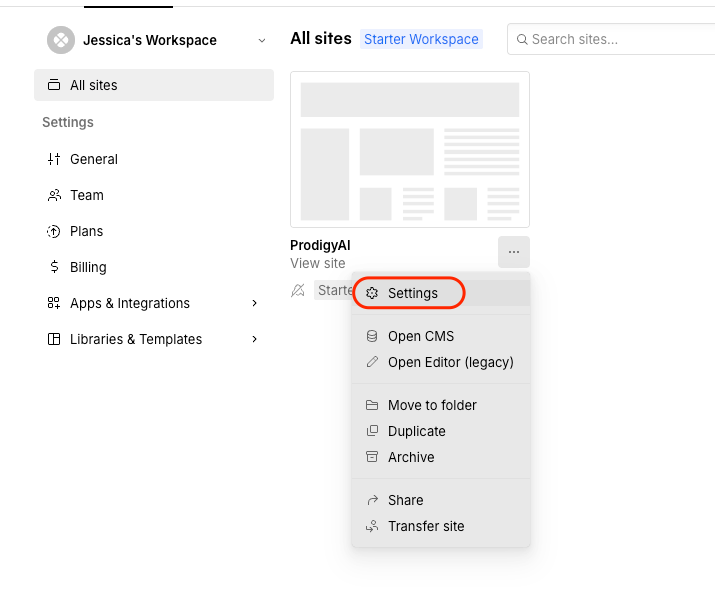
1. In Webflow, click the **three dots** next to the site you want to connect and select **Settings**.
2. Go to **Apps & Integrations**, and under *API Access*, click **Generate API Token**.
3. Name it (for example, *Frase Integration*) and set **CMS** and **Sites** to *Read & Write*.
4. Click **Generate Token** and copy it (Webflow only shows it once).
{% endstep %}
{% step %}
### Paste the token into Frase and verify
{% endstep %}
{% step %}
### Choose your site and collection, then map your fields
Match each Frase field to the Webflow CMS field it should fill. Double-check this the first time you publish. You can change the mapping later from **Settings > Integrations** or any article:
{% endstep %}
{% step %}
### Add a public URL template *(optional)*
This tells Frase where each post lives on your site, like `https://yoursite.com/blog/{slug}`. Frase swaps `{slug}` for each post's slug.
Without it, you can still publish, but Frase can't track the post's search performance, protect it with [Content Guard](https://docs.frase.io/core-workflows/publish-and-protect-with-content-guard), or republish updates to it.
{% endstep %}
{% endstepper %}
## Publish to Webflow
In the article editor, click **Publish**, choose Webflow, and send it as a draft or a live item.
{% hint style="warning" %}
Webflow has no native table element, so tables publish as a readable list instead. To keep tables out of your articles, update your writing instructions in [Brand Hub](https://docs.frase.io/feature-reference/brand-hub#writing).
{% endhint %}
{% hint style="info" %}
**Need custom fields filled in when you publish?** Connect the [Frase MCP](/integrations/api-and-mcp.md) and [Webflow's MCP server](https://developers.webflow.com/mcp/reference/overview) to the same AI assistant, like Claude. Then ask it to publish your article with the fields you need.
{% endhint %}
---
# Agent Instructions
This documentation is published with GitBook. GitBook is the documentation platform designed so that both humans and AI agents can read, navigate, and reason over technical content effectively. Learn more at gitbook.com.
## Querying This Documentation
If you need additional information that is not directly available in this page, you can query the documentation by asking a question.
Perform an HTTP GET request on the following URL with the `ask` and `goal` query parameters:
```
GET https://docs.frase.io/integrations/cms-publishing/webflow.md?ask=&goal=
```
`ask` is the immediate question: it should be specific, self-contained, and written in natural language.
`goal` is what the user is ultimately trying to achieve, the reason they need the answer. Sharing it helps GitBook give you a better, more relevant answer. A goal is most helpful when it describes the outcome the user wants rather than restating the question. For example, with `ask=how do I create an API token`, a goal like `automate deployments from our CI pipeline` lets GitBook tailor the answer to that use case.
The response will contain a direct answer to the question and relevant excerpts and sources from the documentation.
Use this mechanism when the answer is not explicitly present in the current page, you need clarification or additional context, or you want to retrieve related documentation sections.